
How do I record when a graft flowers or fruits?
Add a photo of it, choose Flowering or Fruiting as the photo's category, then pick the graft under Which graft?. The photo's date is the record, and the graft's earliest Flowering photo tells you when it first flowered.
You record flowering and fruiting by adding a photo and linking it to the graft it shows (there’s no flowering or fruiting setting on the graft itself). The photo’s category, such as Flowering, Fruiting or Harvest, is what it shows, and its date is when it happened.
Add a flowering photo to a graft
-
Open the tree and tap Add photo, the camera with a plus at the top of the page (what the other icons do).

-
Tap Take a photo, or Choose from my photos for photos you’ve already taken.
-
In Photo Category, choose Flowering.
-
Under Which graft?, tap the graft that’s flowering. If the flowers are on the rootstock or you mean the whole tree, choose Whole plant (no specific graft).
The photo then carries a badge such as Flowering · Japanese Plum #2.
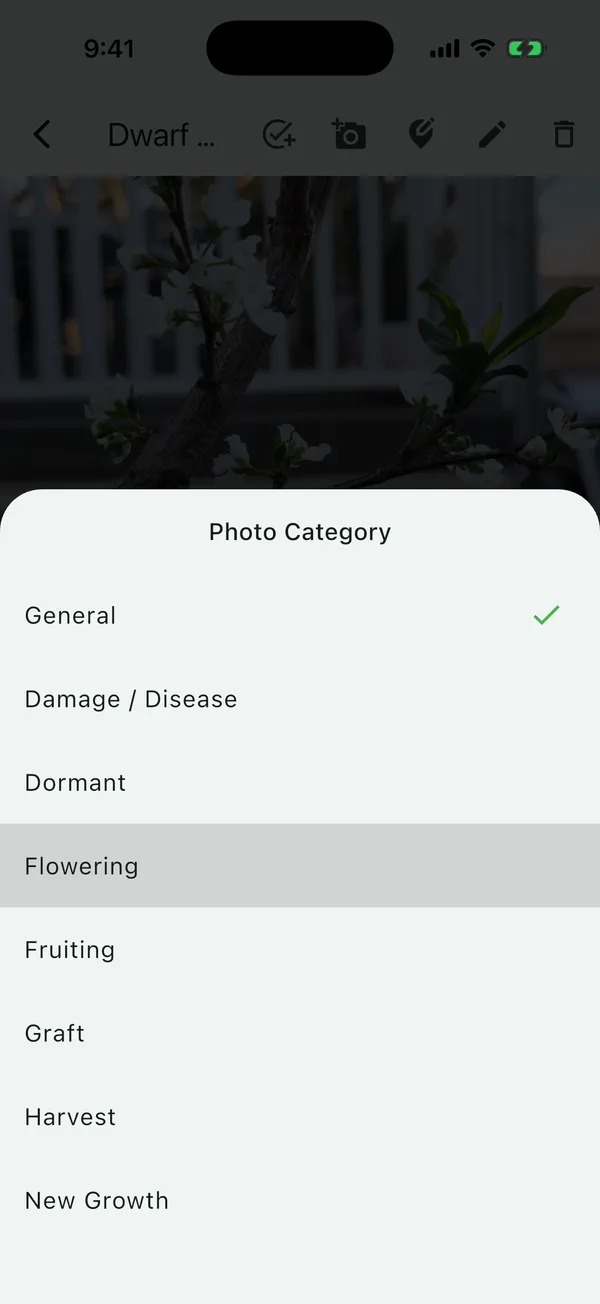
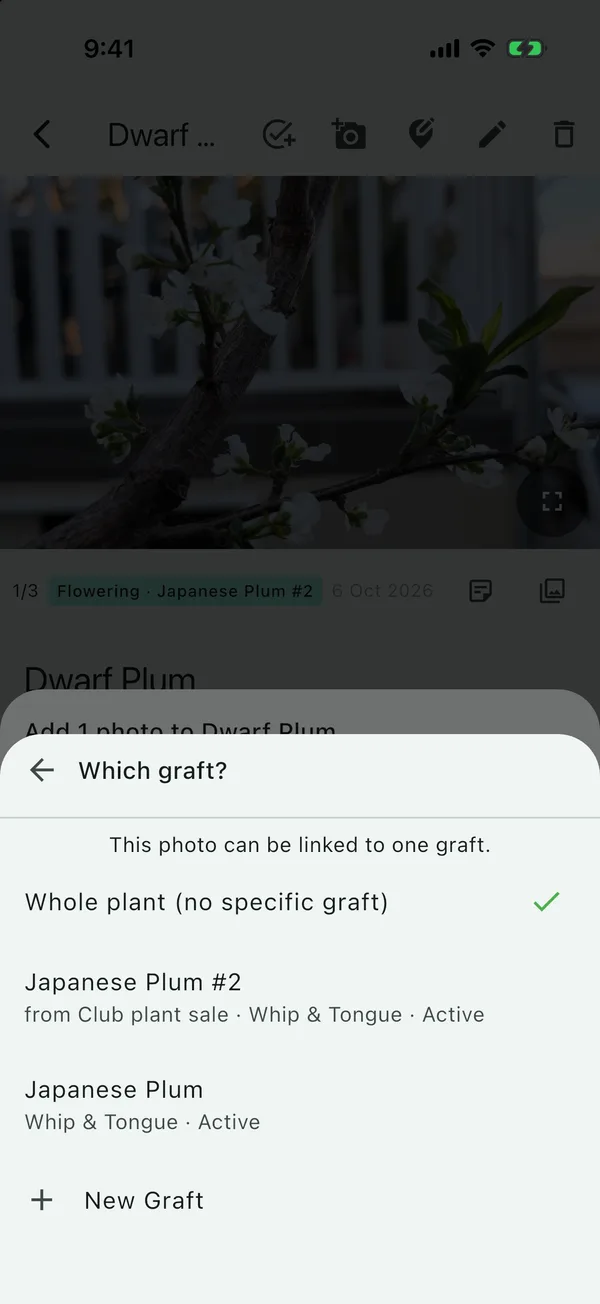
The Which graft? step only appears on a tree that has grafts. Fruiting, harvest and every other category work the same way.
Which category to use
| Category | Use it on a graft for |
|---|---|
| Graft | The graft itself: the union, the tape, the day you did it. A Graft photo must be linked to a graft. |
| New Growth | The scion leafing out, the first sign it has taken |
| Flowering | Flowers on the graft |
| Fruiting | Fruit setting and sizing up |
| Harvest | Picked fruit |
| Dormant | The graft in winter, leafless |
| Damage / Disease | Dieback, a split union, borers |
| General | Anything else. On a graft, the badge shows just the graft name. |
Fill in the history from old photos
Photos from Choose from my photos keep the date they were taken. If you add last spring’s flowering photos today, they land in last spring. If a photo has no date of its own, it uses today, and you can change it with Change before adding.
When you add several photos at once, they share one category and one graft. Add the flowering photos as one batch and the fruiting photos as another.
A worked example
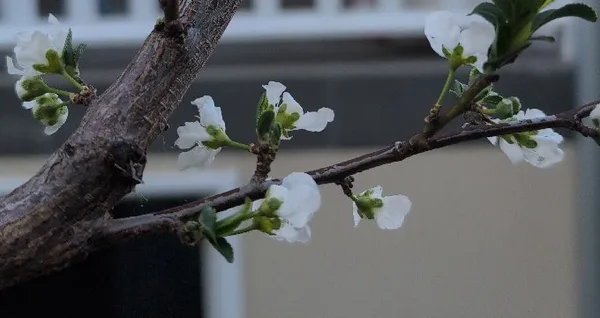
My dwarf plum has two Japanese plum grafts, both done with whip and tongue, on 20 August and 20 September 2024. This spring the second one flowered, so I added a photo of the flowers from 6 October 2026, chose Flowering and linked it to that graft. Neither graft has fruited yet, and when one does, a Fruiting photo linked to it will record when.
To see a graft’s photos in date order, see seeing one graft’s history.
Change a photo’s category or graft later
Open the photo full size and tap Edit category (the pencil). The same picker opens, titled Edit Category, where you can change the category, the graft, or both.
Updated . Something here doesn't match what you see in the app? Tell me and I'll fix the guide.