
How do I see everything recorded for one graft?
Open the tree's gallery, tap the Graft filter, then the graft's name. You'll see every photo linked to that graft, whatever its category, and Oldest first turns it into a timeline.
Filter the gallery to one graft
- Open the tree and tap View gallery, the photo-library icon just under the tree’s photo (which icon is that?).
- Tap the Graft filter, and a second row appears with a chip for each graft that has photos (failed grafts come last).
- Tap the graft’s chip.
- Tap the arrow at the start of the filters to switch from Newest first to Oldest first.
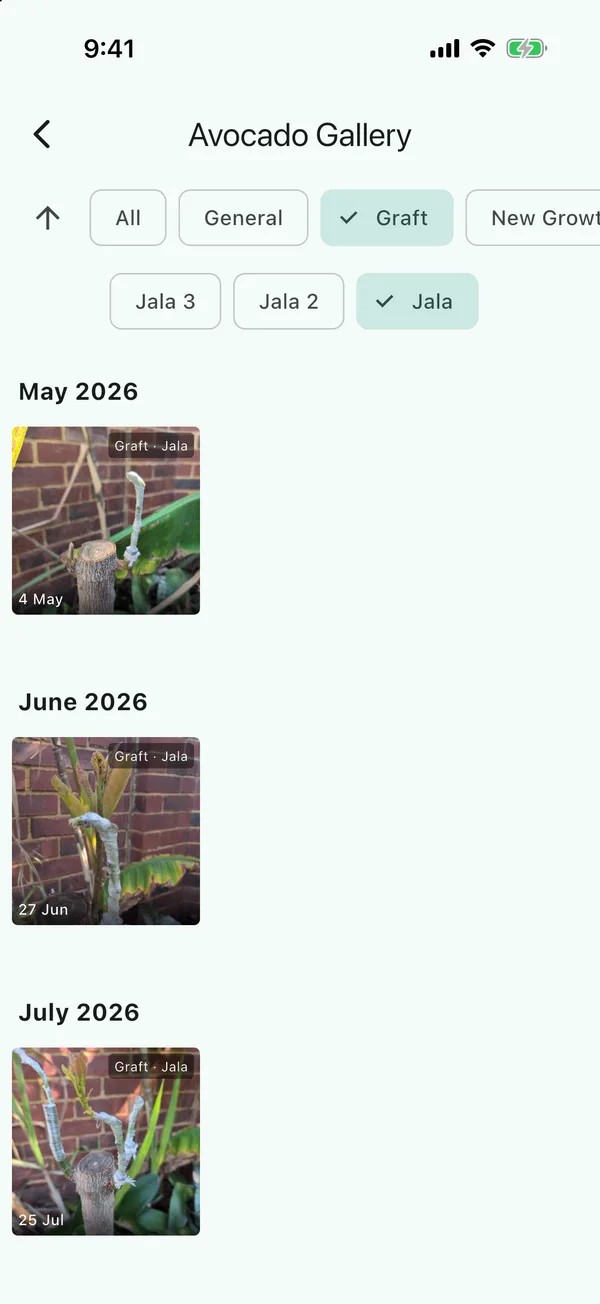
The gallery now shows every photo linked to that graft, whatever its category, grouped by month, so you’ll see the Graft photo from the day you did it, then New Growth, Flowering, Fruiting and so on. Tap the chip again to clear it.
If a graft has no photos, it doesn’t have a chip. Link a photo to it first (see recording when a graft flowers or fruits).
A worked example
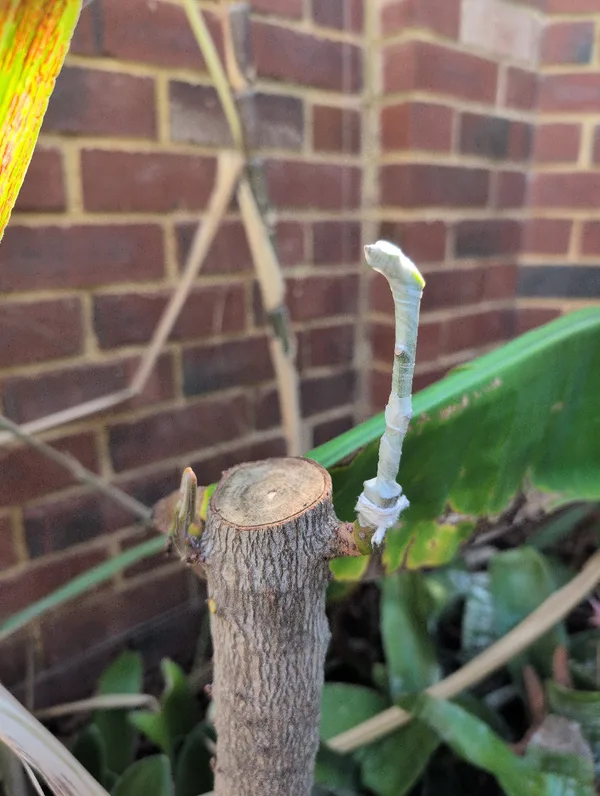
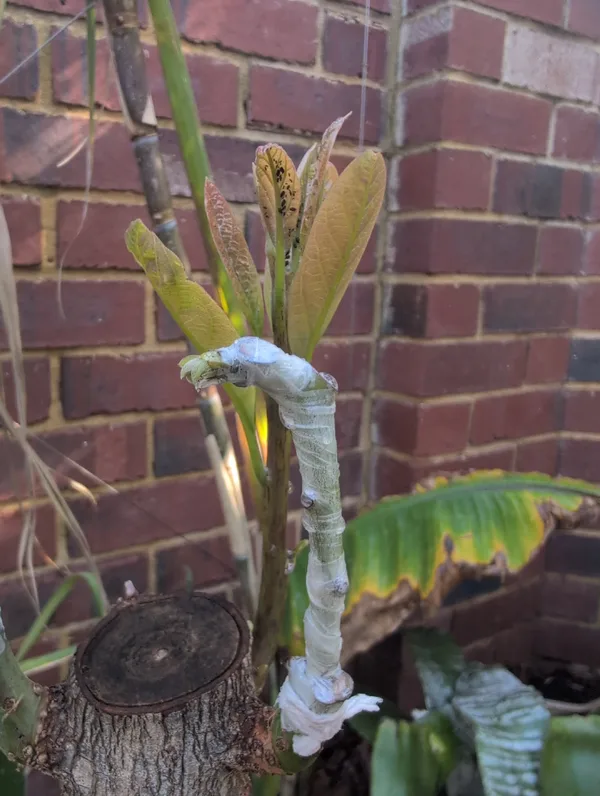
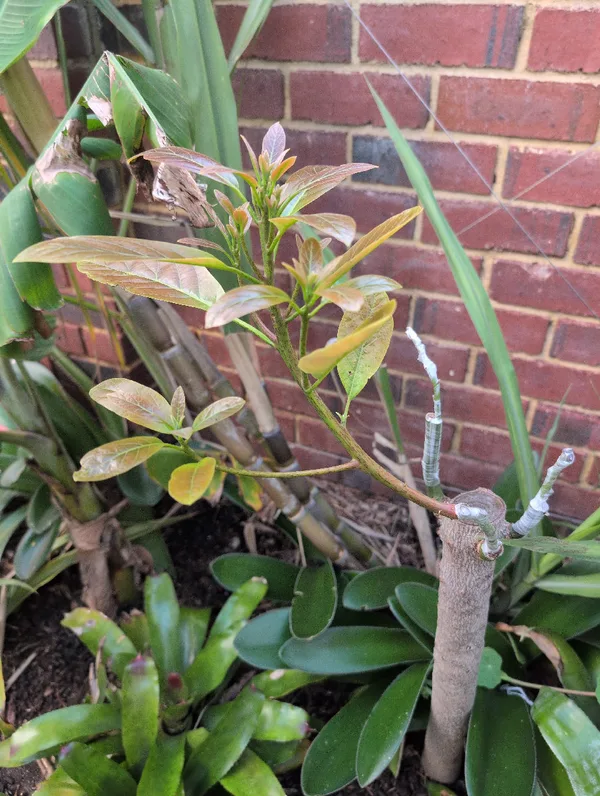
These three photos are all linked to Jala, the first of three Jala grafts on my seedling avocado. With the gallery filtered to Jala and set to Oldest first, they show the graft on the day I did it, sprouting by late June, and a decent size by September.
Check a photo’s graft
Tap any photo to see it full size, and under it you’ll see the graft it’s linked to, its status and, if you recorded them, the technique and source:
Graft: Jala (Active)
Technique: Modified Cleft
Source: Purchase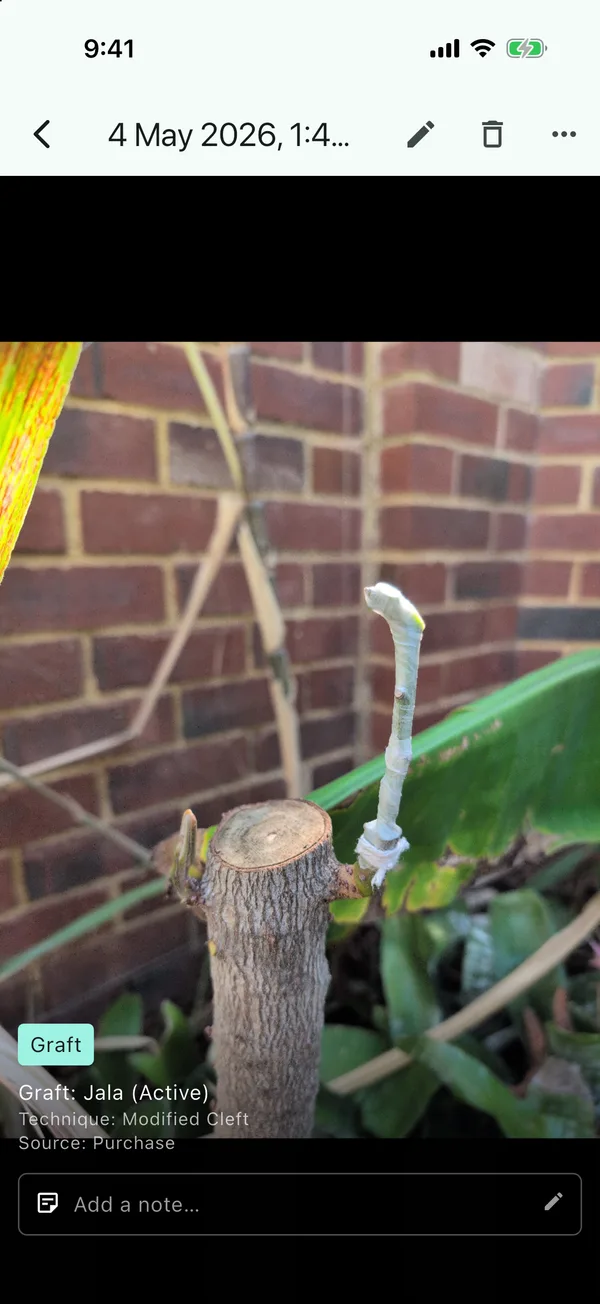
What isn’t in a graft’s history
- Activities. Fertilising, pruning, spraying and so on are logged for the whole tree, a zone or a location, and they’re on the tree’s page under Recent Activities.
- Grafts you removed. Removing a graft deletes its record, and its photos are still on the tree, but they’re not linked to any graft and won’t show under a graft’s chip. Marking a graft Failed keeps everything.
Updated . Something here doesn't match what you see in the app? Tell me and I'll fix the guide.