
How do I find a tree in a long list?
On the Plants tab, tap Search and type part of a name, variety, tag or source, or tap a zone above the list to show only that zone. Sort changes the order between Plant Tag, Date added, Last updated and Plant name.
Search, zones and sorting all work within the location you’re looking at. If a tree you know is there doesn’t come up, check the location name at the top of the Plants tab, or switch to All Locations (see locations and zones).
Search
-
Tap Search at the top of the Plants tab.

-
Start typing. It matches part of a word, in any of these:
- Common Name, Variety / Cultivar and Plant Tag
- Genus and Species
- Received From and Source
- Status and Notes
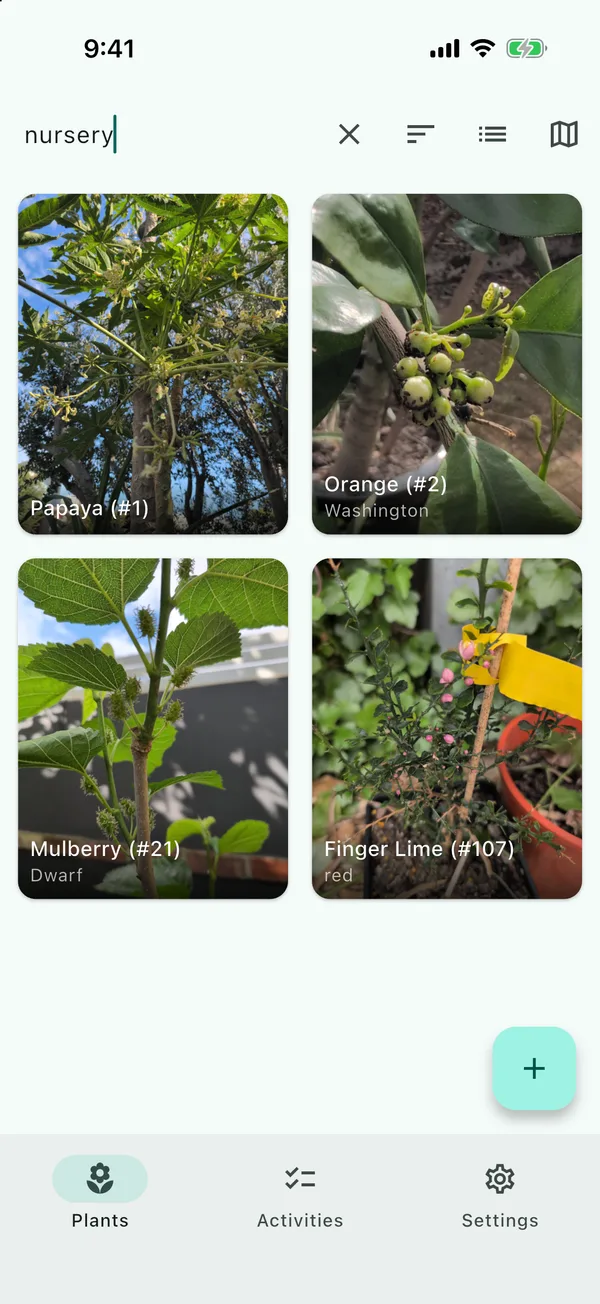
As it searches Received From too, typing nursery finds every tree you got from a nursery.
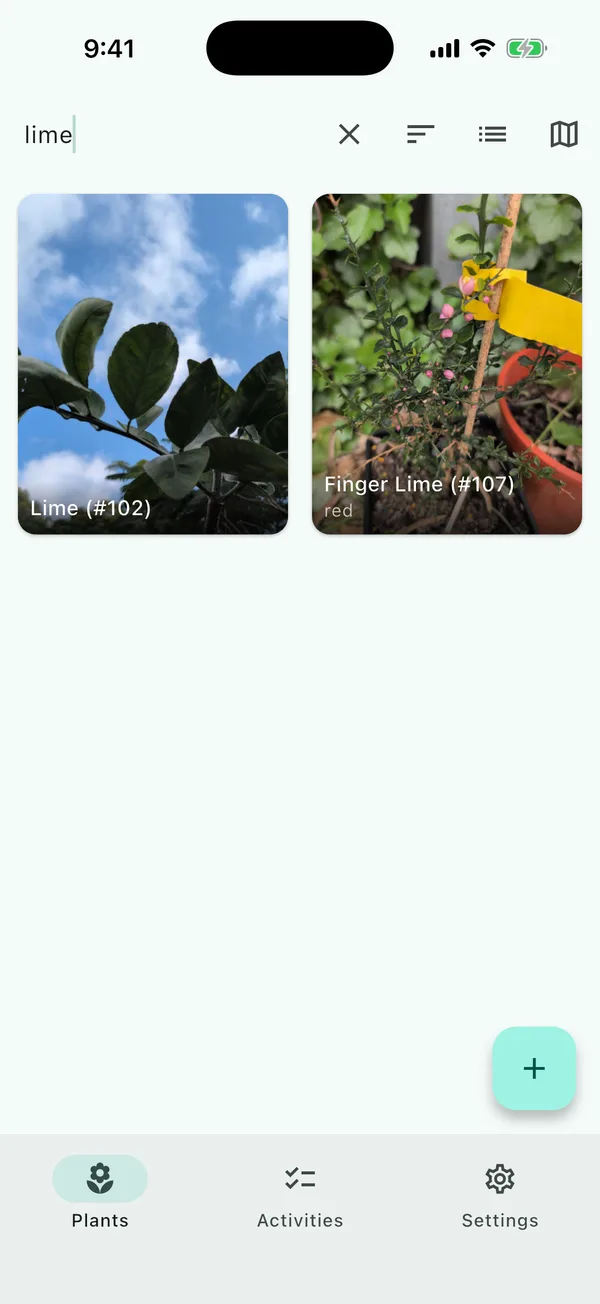
It’s worth filling in Genus when you know it, as a search will find the tree even if you’ve spelt the common name differently.
Filter by Zone
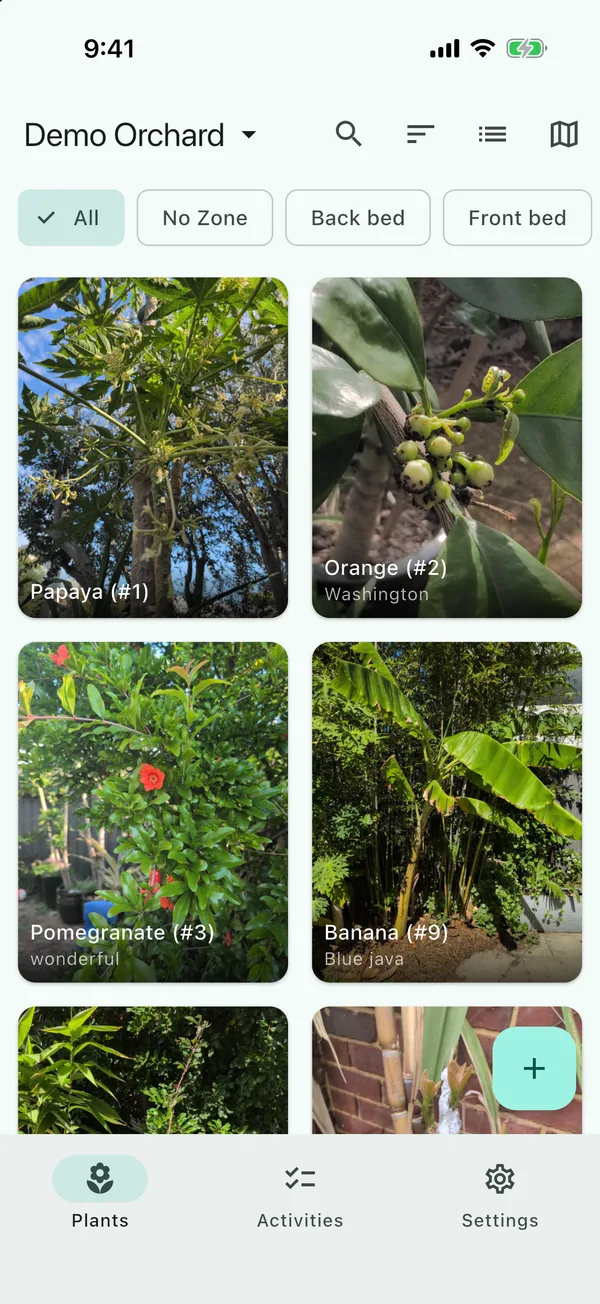
Above the list is a row of zones: All, No Zone for trees without one, then each zone that has trees in it. Tap one to show just those trees.
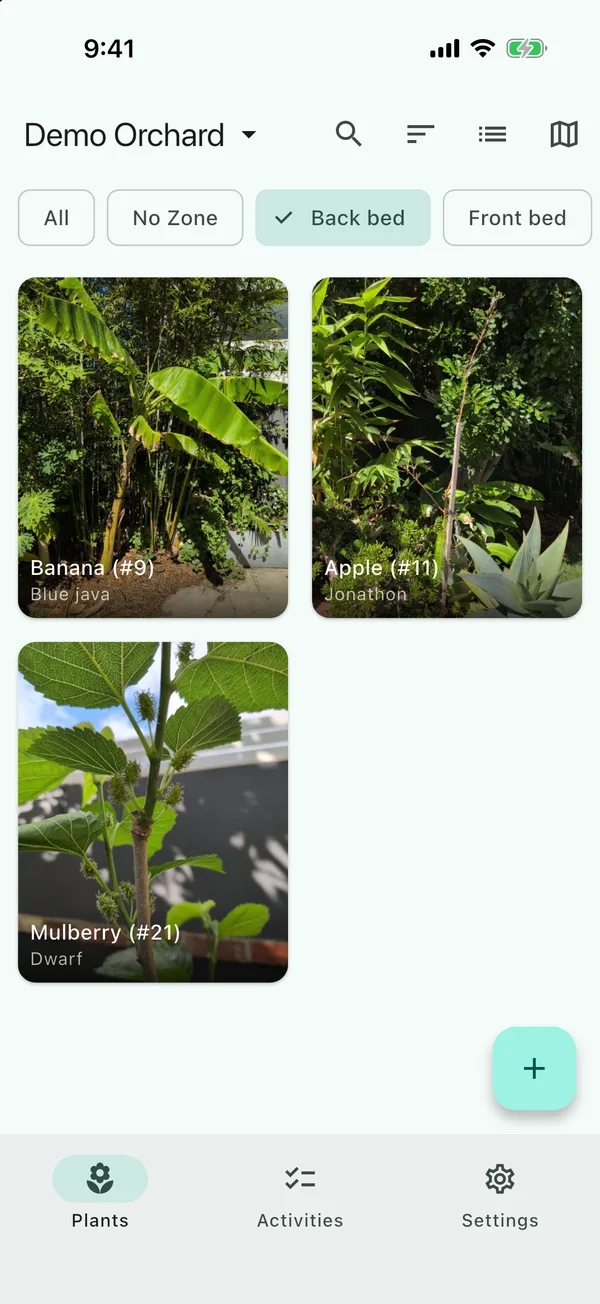
The row hides while you’re searching, and doesn’t appear at a location with no zones.
Sort
Tap Sort and choose Plant Tag, Date added, Last updated or Plant name. Tap the same one again to reverse it. The list starts on Last updated, newest first, with the tree you last changed (or photographed, or logged an activity for) at the top.
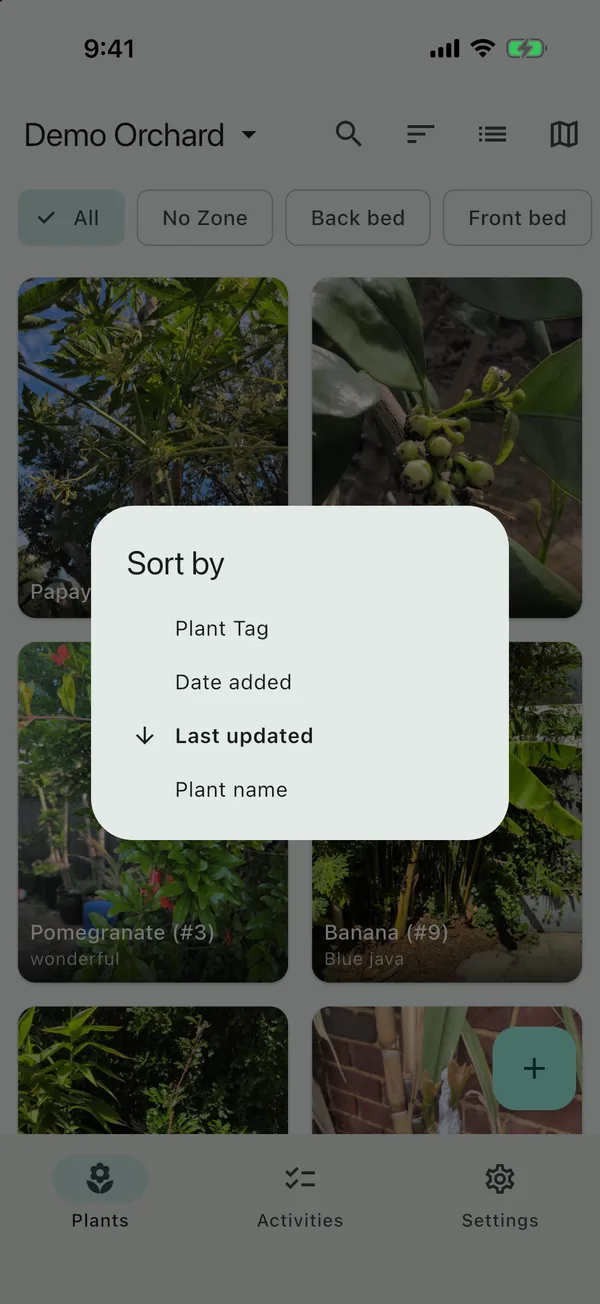
Plant Tag sorts shorter tags first, which puts 9 before 11 and 102, as you’d expect. Tags of the same length are compared character by character, and a tag with a letter in it, like 28a, lands among the three-digit tags, after 199 and before 300.
The button next to Sort switches between a grid of photos and a plain list (Switch to list and Switch to grid), and TreeSmith remembers your choice, as it does your sort.
Change several trees at once
Press and hold a tree to start selecting, then tap the others you want. The bar at the bottom has:
- Move, to put them all in one zone, or No zone
- Status, to change all their statuses at once
- Activity, to log one activity for all of them
- Delete
Moving trees into a zone at another location moves them to that location too.
I mostly search for the trees I’m actively grafting, so I can take photos as the grafts progress (see following one graft over time).
Updated . Something here doesn't match what you see in the app? Tell me and I'll fix the guide.